Nothing you could do in the editor has been taken away. Some buttons moved so the screen is calmer, and this page says where each one went.
If you are new: the editor is the screen where you chat with the builder on the left and see your funnel on the right. The bar across the top now has three things on its right side: your credits, Share and Publish. Everything that used to sit beside them has a new home, listed below.

Was here, now here
| What you are looking for | Where it was | Where it is now |
|---|---|---|
| Help | A question-mark button in the top bar | Your account button (bottom of the left sidebar), then Help |
| Notifications | A bell in the top bar | Your account button, then Notifications (first row) |
| People on your funnel, and inviting someone | Faces and a plus button in the top bar | Share, then the Team tab |
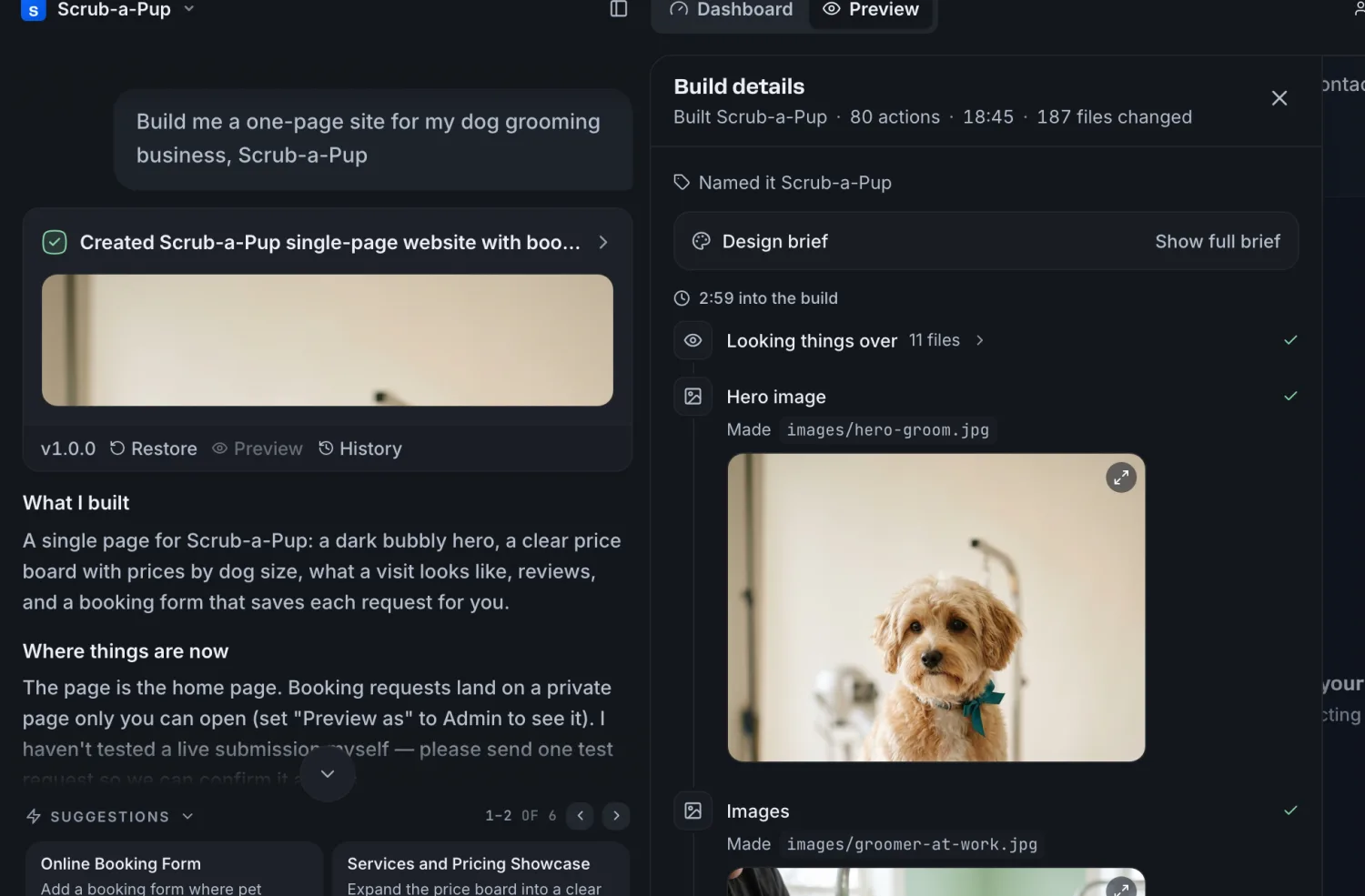
| Version history | A clock button in the top bar | History on any finished build card, or your funnel's name in the top bar, then Version history |
| Undo the last change | Inside version history | Undo on the newest build card |
| Go back to an older version | Inside version history | Restore on that version's build card |
| How long a build took, and its steps | On the build card | Click the build card to open Build details |
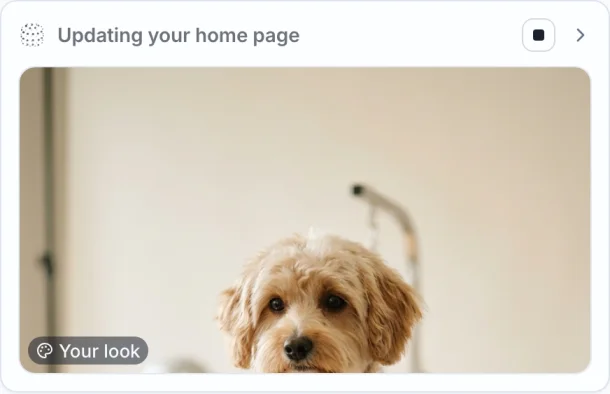
| Stop a build | A Stop button on the build card | The small square on the card, or Stop at the top of Build details |
| Happy Hour | A button in the top bar | Automatic. There is nothing to press |
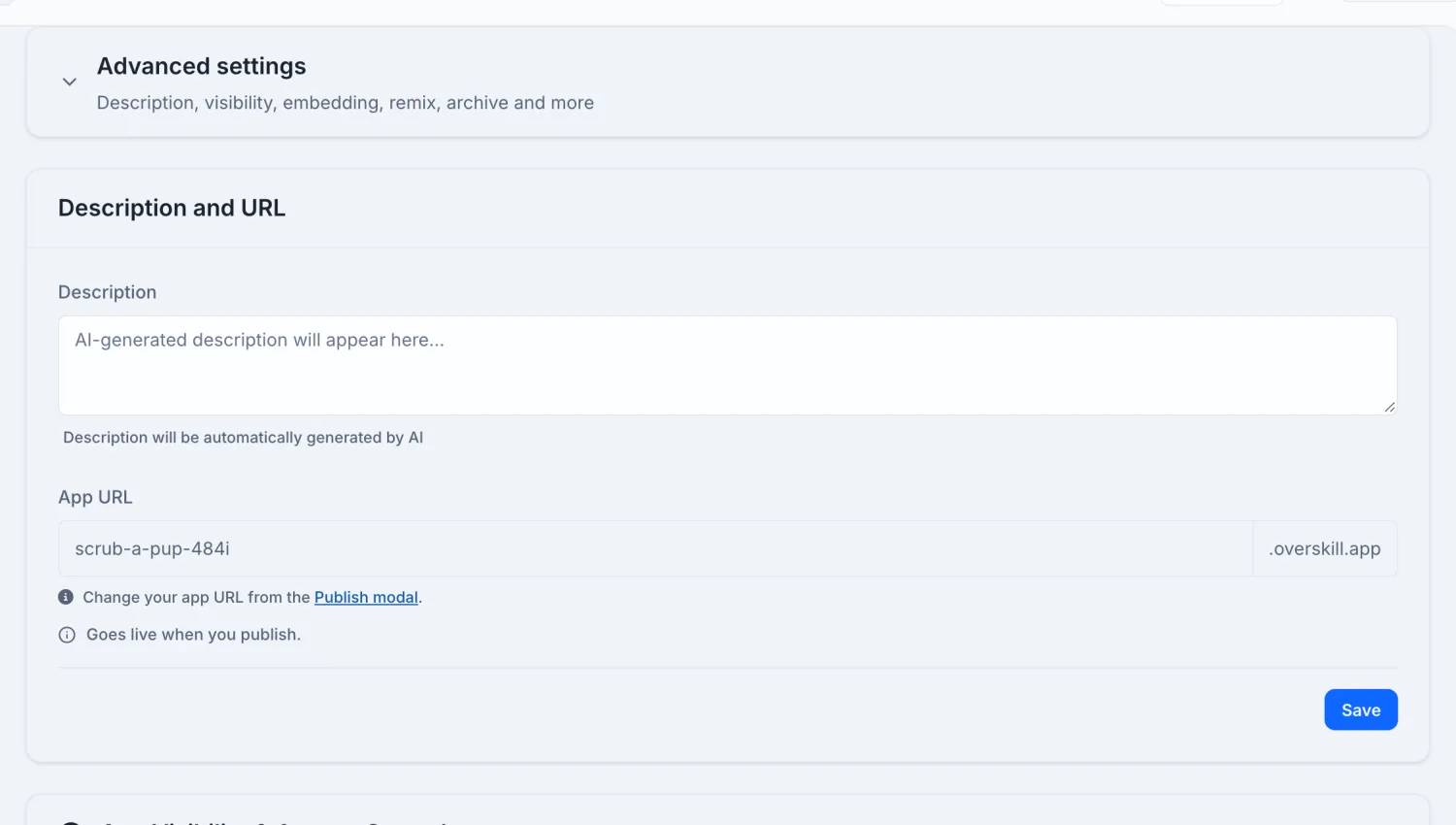
| Description, visibility, embedding, remix, archive | Cards in Settings | Settings, then Advanced settings |
| Environment variables | A shortcut card in Settings | Dashboard, then Env Vars |
| Documentation and developer docs | Rows in the account menu | Your account button, Help, then Articles or Developer docs |
| Credits | A pill in the top bar | Still in the top bar, always shown |
| The Arcade | A pill over the preview | Still a pill over the preview, at its bottom left |
| A page's note | A small tooltip on the page's row | A card that opens when you point at the page in the Funnel panel |
| Sign-in pages, the partner page and your report | Among your funnel's pages, or under Admin | Members & admin, at the bottom of the Funnel panel |
Help and Notifications
Both are in your account menu now. Click your account button at the bottom of the left sidebar.
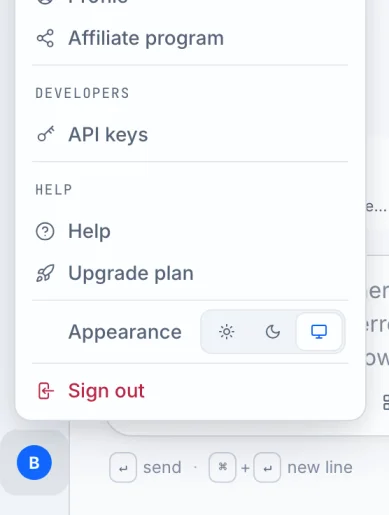
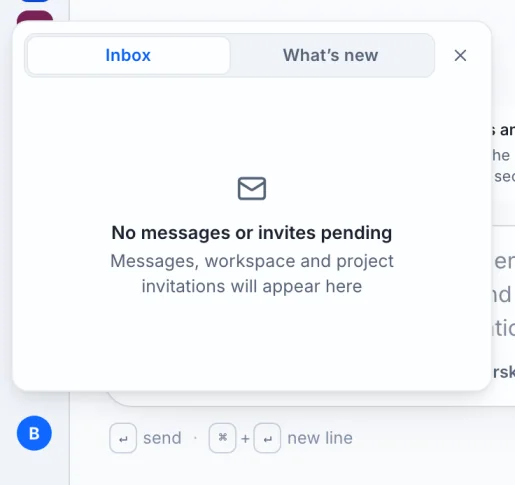
Notifications is the first row of that menu. It opens the same Inbox and What's new window as the bell did.
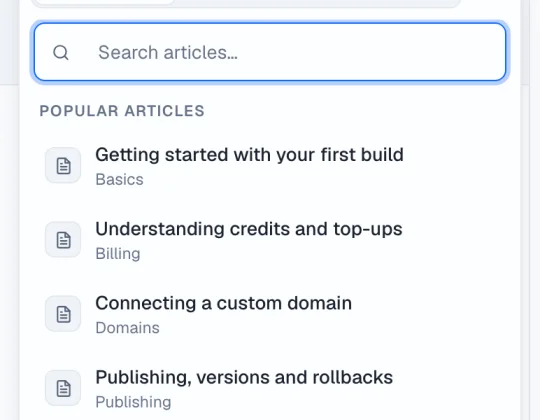
Help opens a panel with three tabs: Articles (search the help center), Chat and Tickets. The link to the developer docs is at the bottom of the Articles tab.
People, invites and links: Share
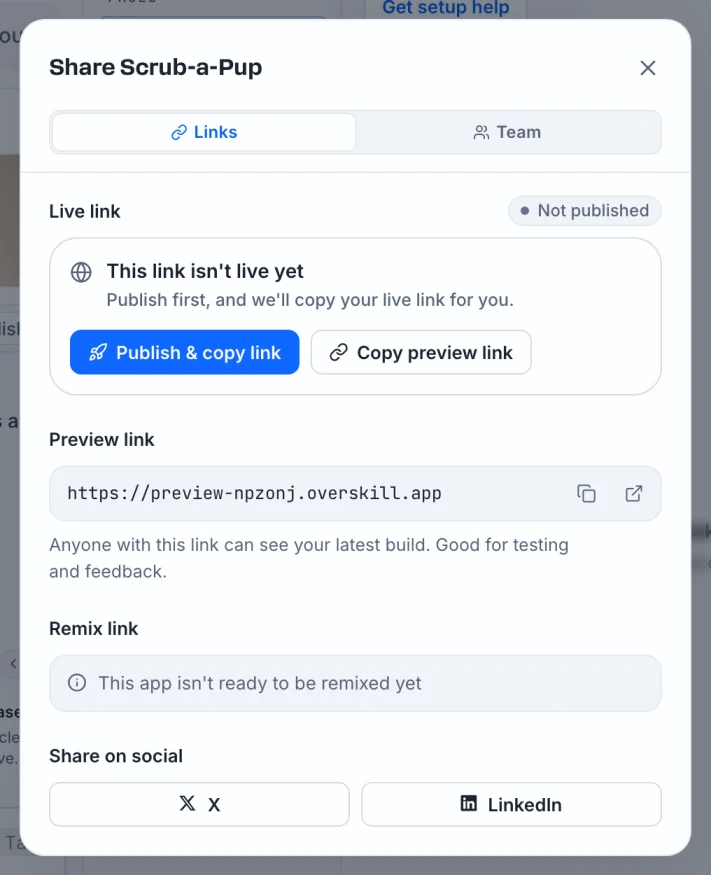
Share now holds everything about who can see your funnel.
- The Links tab has your live link and your preview link. Each has Copy and Open. The live link's row says whether your funnel is published, and offers Publish & copy link when it is not.
- The Team tab lists everyone who can open the funnel and has the form to invite someone by email.
Publish did not move. It is still the button at the right end of the top bar. The button that opens your preview in a new tab is still beside the phone and desktop switch.
Version history, Undo and Restore
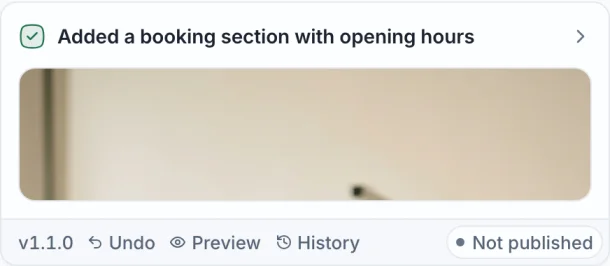
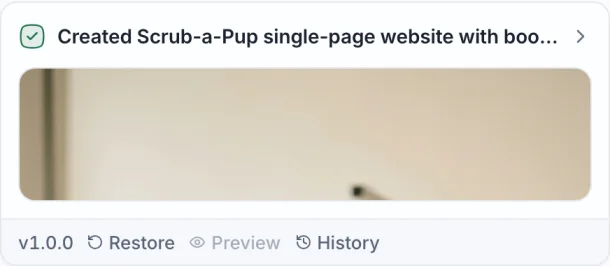
You no longer have to open version history to go back. Every finished build card has a row under its picture:
- Undo on the newest card takes your funnel back to how it was before that change.
- Restore on an older card takes your funnel back to that version.
- Preview shows that version in the preview. It works on the newest card. On an older card it is grayed out and tells you why: only your newest version has a preview, so to see an older one, restore it.
- History opens the full list of versions.
Restore shows you what will change and asks you to confirm. Undo goes back one step the same way; when it cannot do that by itself, it tells you so and opens version history so you can pick the version.
There are two more ways into version history:
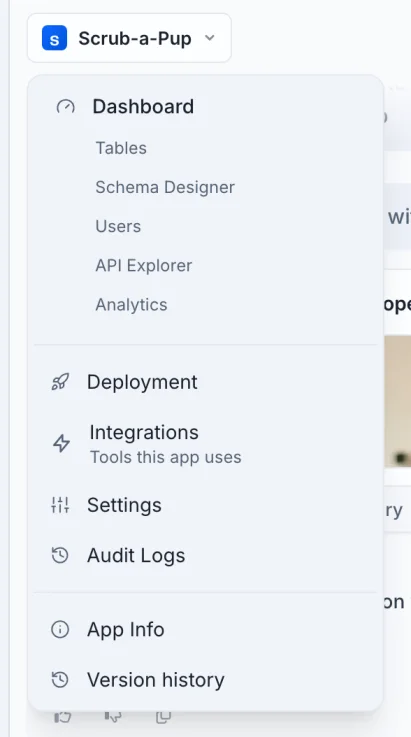
- Click your funnel's name in the top bar, then Version history.
- Open Dashboard, then Settings, then Advanced settings, then Open version history.
Build details: steps, time and Stop
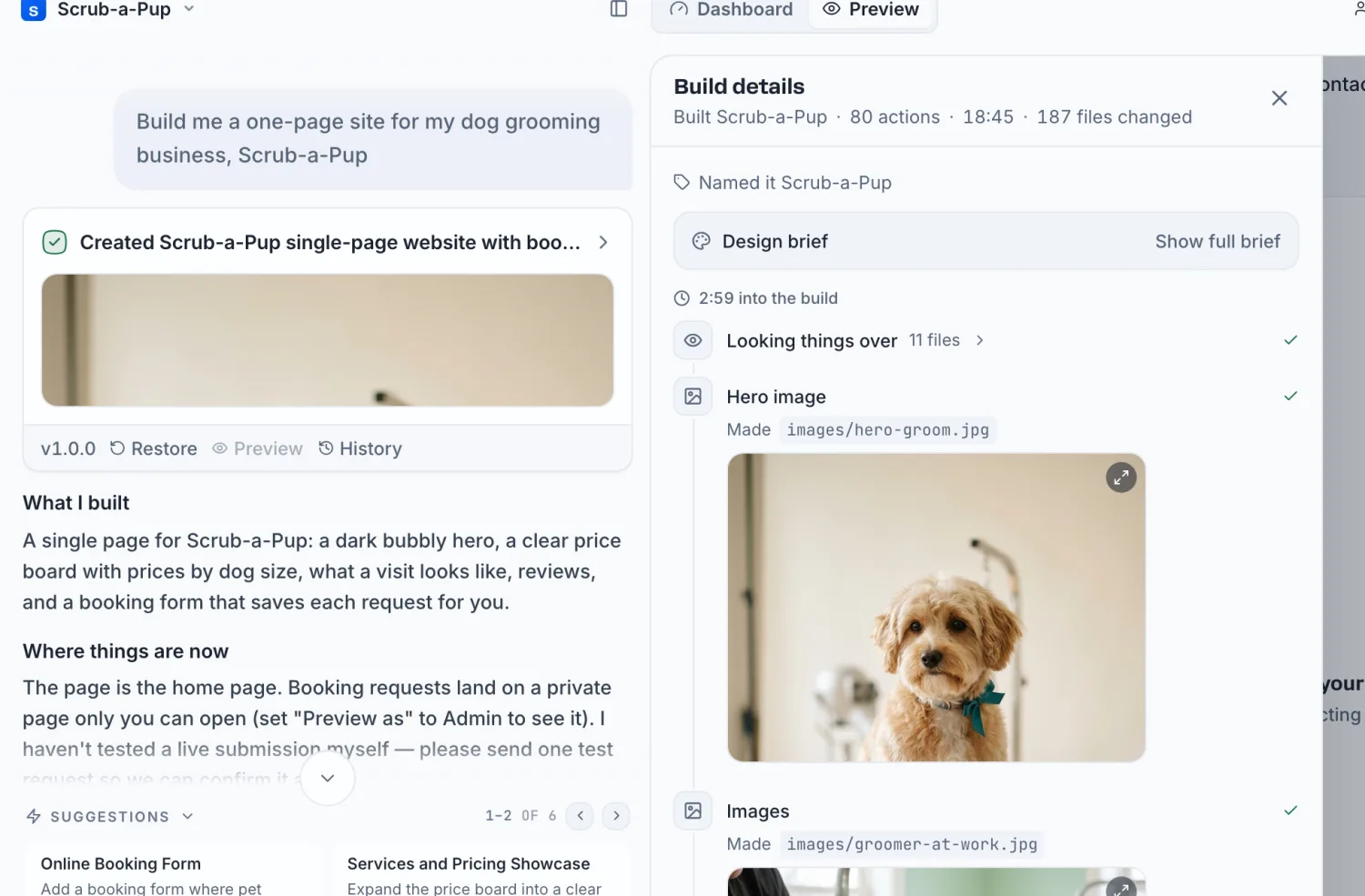
A build card now shows one line and a picture. Click anywhere on the card to open Build details beside it. That panel has what the card used to show, and more:
- what is being built, how many actions it has taken and how long it has run
- the look you chose, if you chose one with Build this
- on a new funnel's first build, the name the builder gave it
- every step, in order, with the files it touched
While a build runs there are two ways to stop it, and they do the same thing: the small square on the card, just left of the arrow, and Stop at the top of Build details.
For more about the card and the panel, see Following a build in the builder chat.
Settings
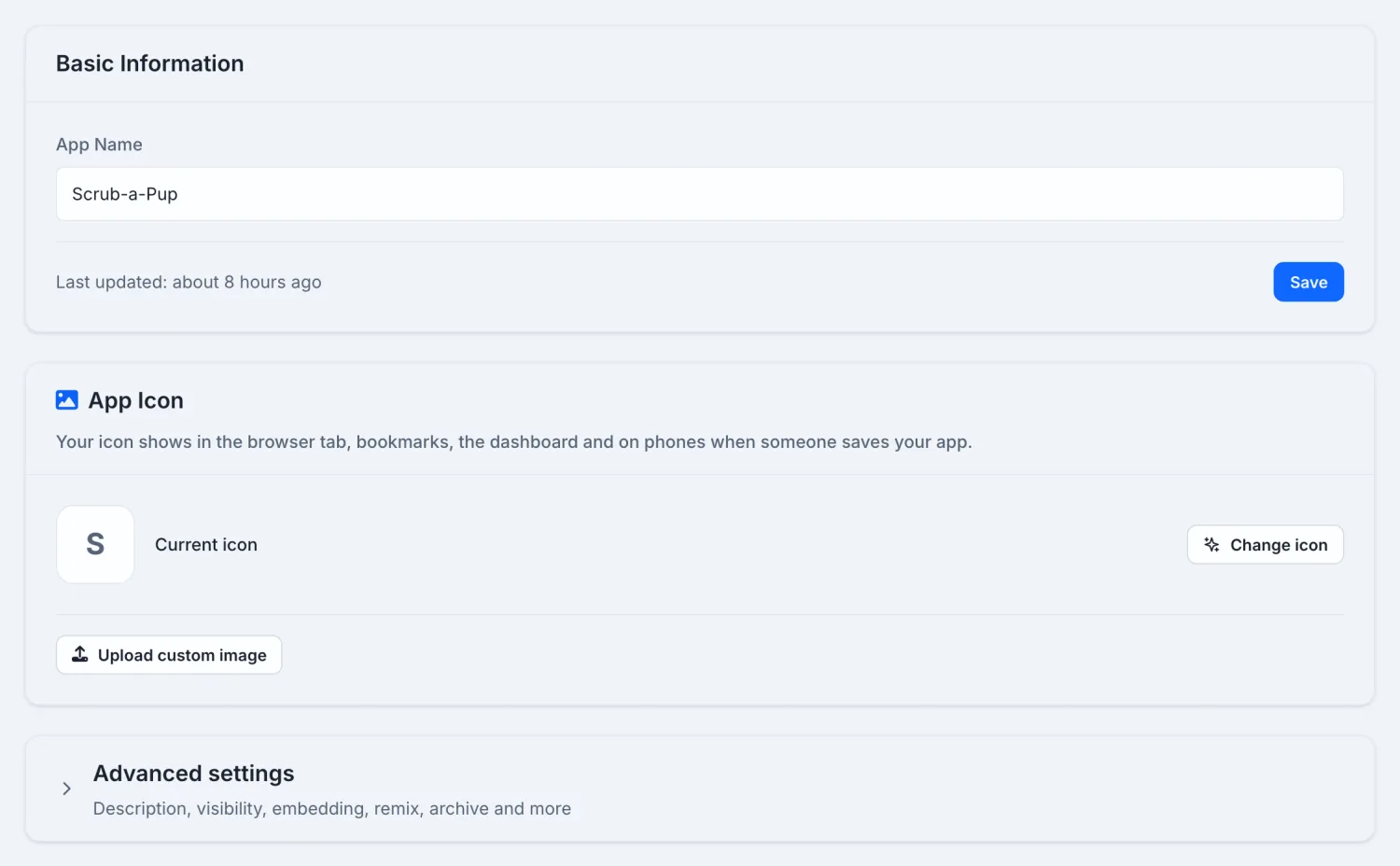
Settings opens on the two things most people change: your funnel's name and its icon. Everything else is one click away under Advanced settings: description and address, visibility, embedding, remix, limits for your funnel's visitors, moving the funnel to another workspace, version history and archiving.
Settings used to have a card that jumped to your environment variables. The page itself has not moved: open Dashboard, then Env Vars.
The Funnel panel
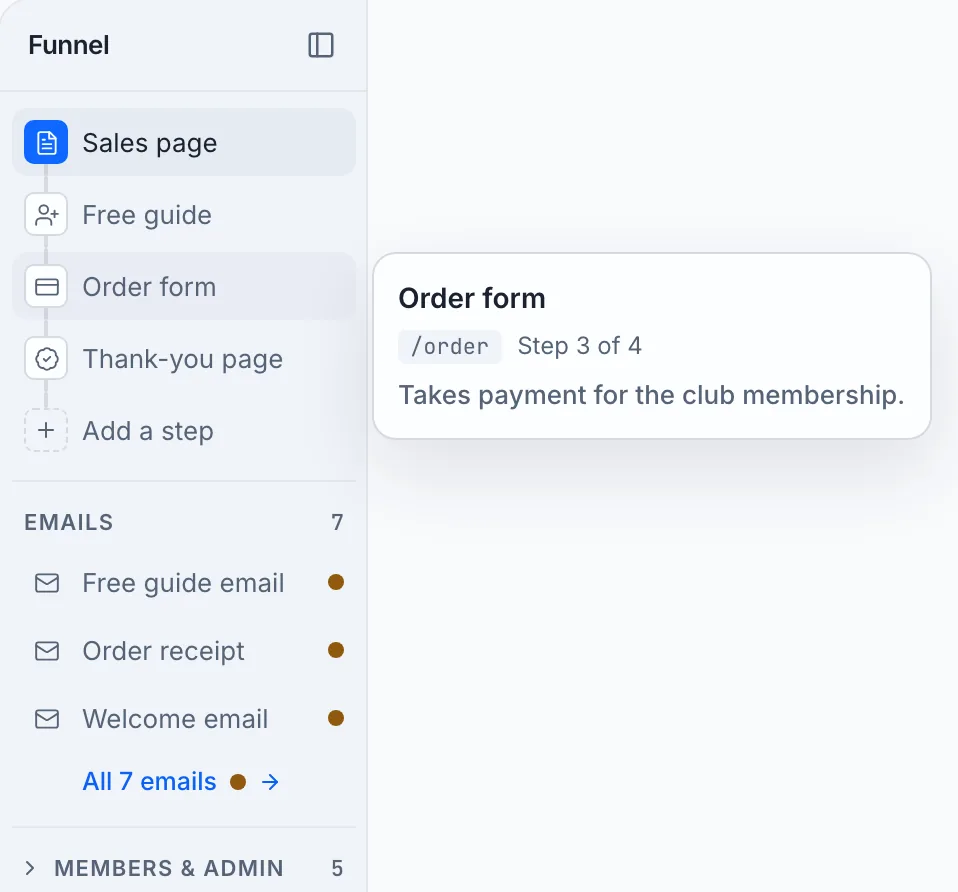
Once your funnel is built, the Funnel panel opens by itself on a wide screen. It used to be called Pages. It has three parts, top to bottom:
- Your funnel's steps, in order. Each step has a small picture for what kind of page it is, and the page you are looking at is filled in blue. The last line is Add a step. Click it and the chat box gets the start of a request (
Add a step to my funnel:
). You finish the sentence and press send. Nothing is sent until you do. Say where the step goes if you have a place in mind (before the order form, a page that answers common questions
). If you don't, the AI puts it where that kind of page belongs and tells you where it went and why. The new step is not always the last one, so check in the preview that the buttons before and after it lead where you want. - Emails, the emails your funnel sends by itself. Up to four are listed. With five or more you see the first three and a line such as All 5 emails, which opens the Email tab with every one.
- Members & admin, closed until you open it (it reads Admin when it holds only your own screens). It holds every page a visitor does not walk through: pages people sign in to see (a lock), a page that is turned off (a power symbol) and your funnel's report (a chart). Click its name to open it. It stays the way you left it in that browser, and it opens by itself when you go to a page inside it.
If you close the panel, it stays closed; the button to bring it back is in the top bar.
Point at a step to see a card with its name, its place in the funnel, its address and a note about what it holds. On a keyboard, Tab to the step and the same card opens.
To move or remove a step, ask in the chat (Put the order form before the free guide
). You cannot drag steps in the panel: the order comes from your funnel itself, so changing it is a change the builder makes. After a change, check the panel. If a step is not where you wanted it, say where it should go.
Credits and the Arcade
Neither moved. Your credits are always shown in the top bar, just left of Share. The Arcade is the small pill at the bottom left of the preview; while a build runs it reads Play while you wait.
Happy Hour
The Happy Hour button is gone because you no longer need it. What it switched on now happens by itself on the plans that had it. There is no daily limit to keep track of.
On a phone
- Help is still the question mark at the top right.
- Notifications and your account menu: tap the menu button at the top left, then your account.
- Version history: the clock at the bottom left.
- Share and inviting people: tap the gear in the bottom bar, then Overview, then Share.
- Build details opens as a sheet from the bottom when you tap a build card.
Questions
Did I lose any versions or settings? No. Only the buttons moved. Your versions, settings, pages and people are exactly as they were.
I liked seeing the timer on the card. Can I have it back? Open Build details and leave it open. It keeps up with the build while it runs, including the time.
Where did Named it …
under my first build go?
It is the first line inside Build details for that build.
Why is Preview grayed out on an older card? Only your newest version has a preview. To look at an older version, use Restore on its card. Restoring saves it as a new version, so the versions you have now stay in your history.
I can't find something this page doesn't list. Open Help from your account menu and ask in Chat, or open a ticket. Tell us what you were looking for and where it used to be.